You Removed the Product Photo's Background: The Real Work Starts Now

Last reviewed:
A white background for product photos starts with removing the backdrop, but the work doesn’t end there. Four obstacles remain: resolution capped by free plans, a cutout that breaks on hair, tulle or glass, a shadow deleted with the background, and marketplace rules that measure more than the background. The frame is ready to sell once all four are cleared.
Removing a background takes a few seconds: you pick the photo and the product appears on an empty background. The real questions start once you hit download: why is the file this small, where did the gray line around the bag strap come from, why does the product look like it’s floating, why wasn’t the white-background frame approved?
Resolution
- A free plan may reduce the output size
- Enlarging afterwards adds no sharpness
Check: pixel dimensions
Cutout
- Can break on hair, tulle, glass and chains
- A halo or stray strap can remain at the edge
Check: zoom in and pan along the edge
Shadow
- Deleted along with the background
- A synthetic shadow is drawn afterwards
Check: one decision across the catalog
Marketplace rule
- The background is only one of several items
- Fill, size, text ban
Check: measure rule by rule
Removed ≠ ready: all four obstacles begin after the delete button.
These four obstacles form the backbone of this article; we checked the rules against the rule set behind our Marketplace Image Checker and the tools’ own help pages.
Why did the resolution drop?
If the file you downloaded is smaller than you expected, the cause may not be the cutout but your plan: some of the widely used free tools limit output resolution, and a shrunken frame can fall below a marketplace’s lower limit. The limit is stated in the help center, not on the marketing page; the verified values are in the sources list. The tool list isn’t fixed either: remove.bg’s standalone site closes on December 1, 2026, and background removal is moving to Canva.
Enlarging a shrunken frame afterwards is no fix: classic upscaling softens the image, and AI upscaling fills in missing detail with guesses — the same situation we described in our old photo enhancement article, the first in this series. Start from the highest-resolution original.
Which products break the cutout?
A cutout is a model’s guess about where the product’s edge ends; the places where it struggles are well known. These are the classes background-removal models are known to struggle with:
- Hair, feathers and fur — a fur collar, a fuzzy knit. The semi-transparent transition is either cut off or left with a halo carrying the old background’s color.
- Mesh, tulle and lace — a tulle skirt, a mesh bag. The old background stays in the holes, or the pattern is mistaken for a solid surface and filled in.
- Transparent glass and bottles — a perfume bottle. The background behind the glass is taken as part of the product.
- Fine chains, wires and straps — a necklace chain. A structure a few pixels thick disappears at the model’s resolution.
- Reflective chrome and shiny metal — a watch case. Reflections on the surface are mistaken for background.
- Colors close to the background — a white T-shirt on a white table. As contrast drops, edge prediction weakens.
This list describes models in general; not every tool struggles equally with every class. When we measured our own tool on September 24, 2026 using 18 frames from our archive, fine chains and lace cut out cleanly, and contrast was the class that gave the most trouble — the version narrowed by that measurement is on the tool’s own page. The two comparisons below are from that measurement.
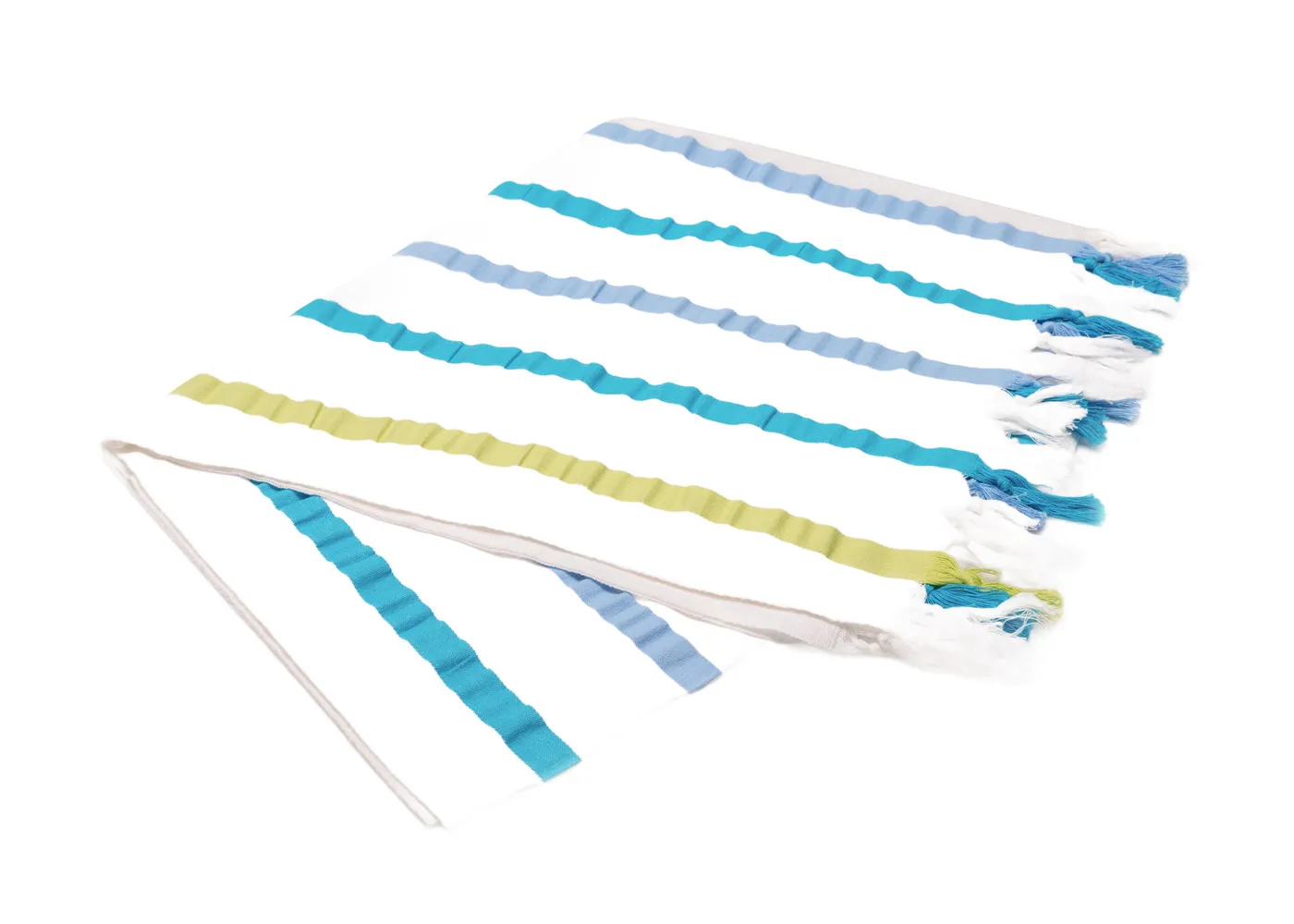
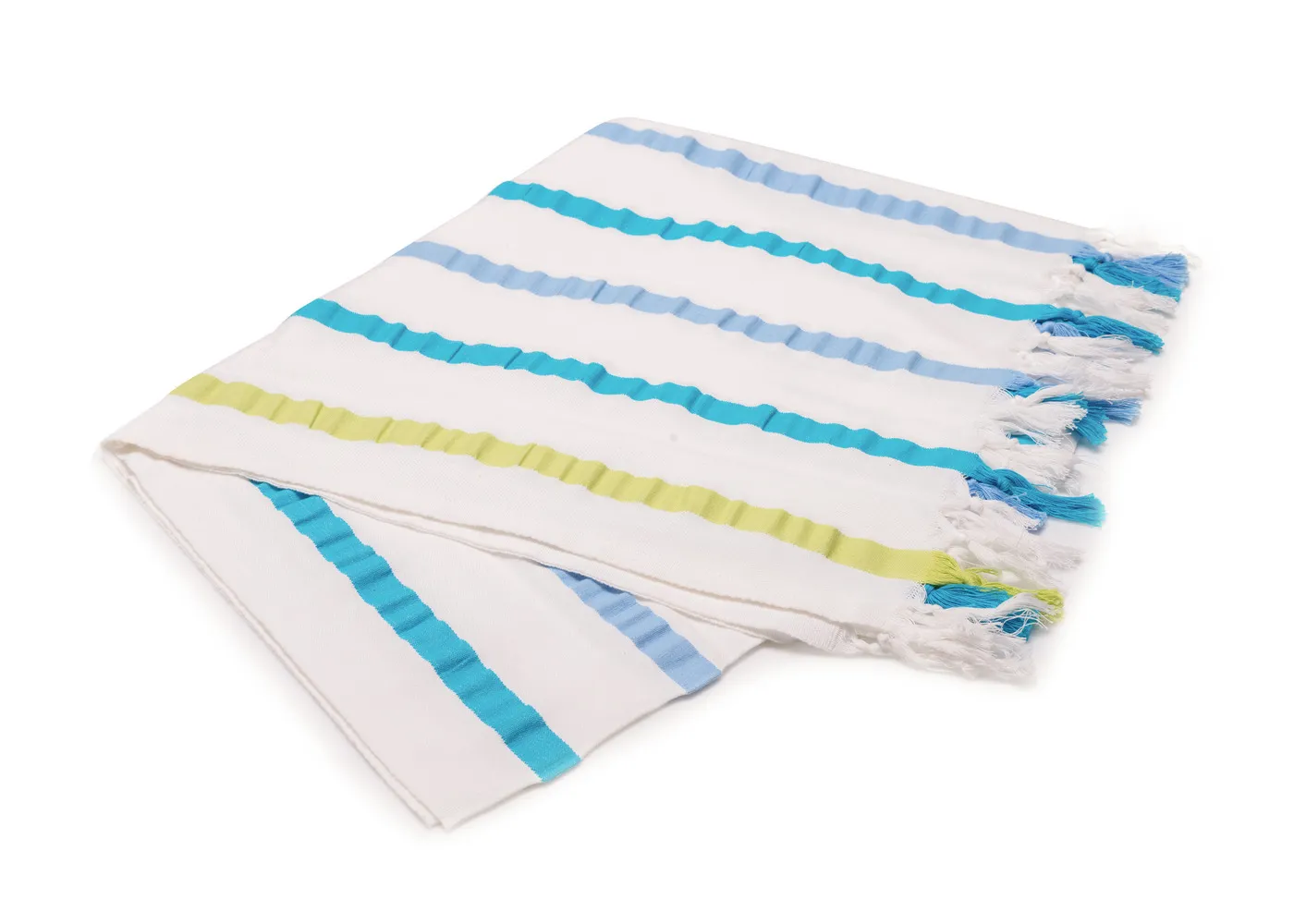
Color close to the background. The towel’s white body is the same tone as the background; the model took it for background and deleted it, leaving the colored stripes and a thin edge.
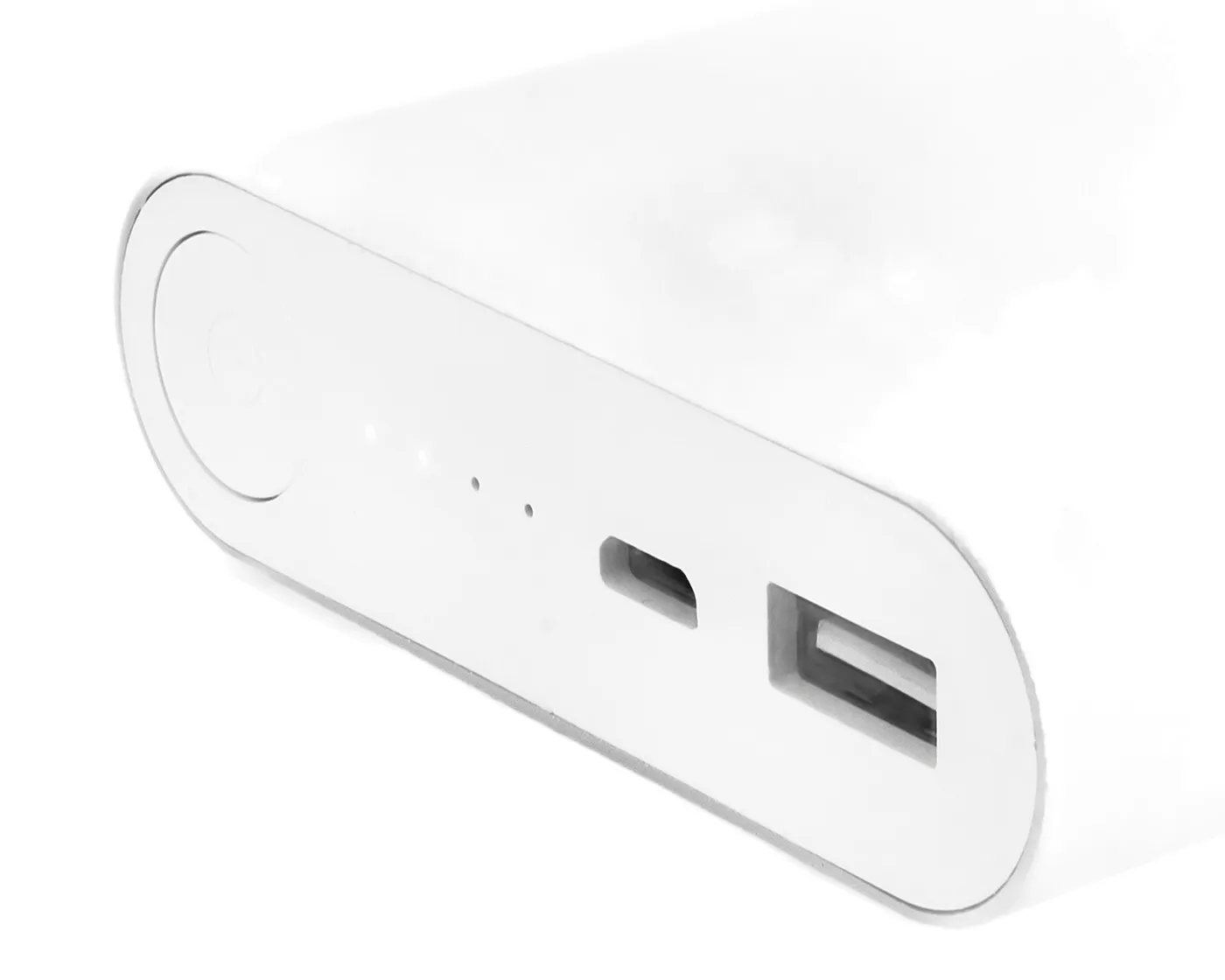
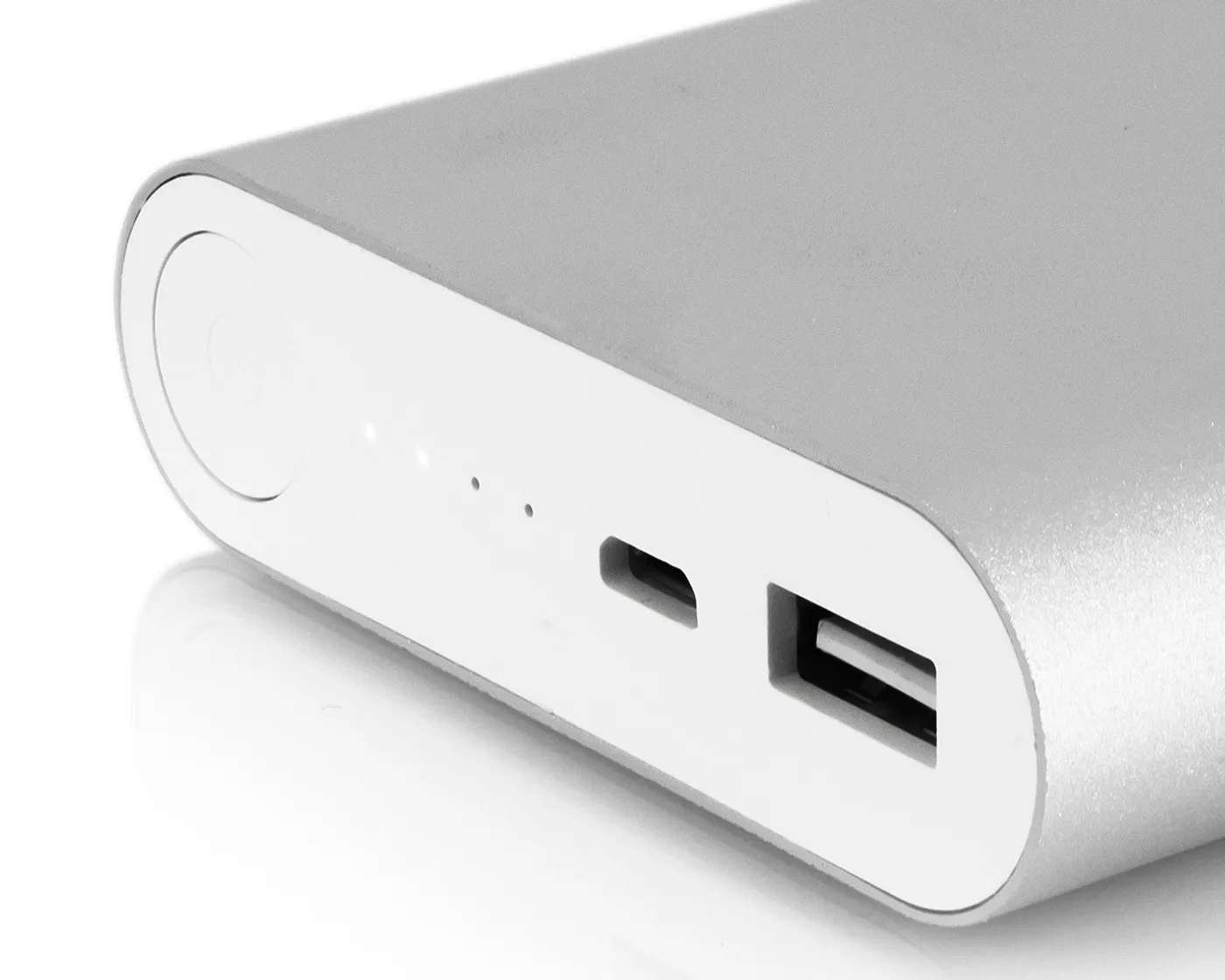
Reflective shiny metal. The reflection on the aluminum surface was mistaken for background; the body turned white, and an uncleared remnant is left at the top right.
AI technologies were used.Textiles sit right in the middle of the list: in ghost mannequin photography, removing the mannequin is the most time-consuming part of the technique. Before downloading, enlarge the frame and pan along the edge; if there is a gray halo or a stray strap, the frame isn’t ready.
Where did the shadow go?
Even a product with a clean cutout can look pasted on. The reason is the shadow: the darkness where the product touches the table is part of the background, it’s deleted with the background, and the product is left hanging in white space.
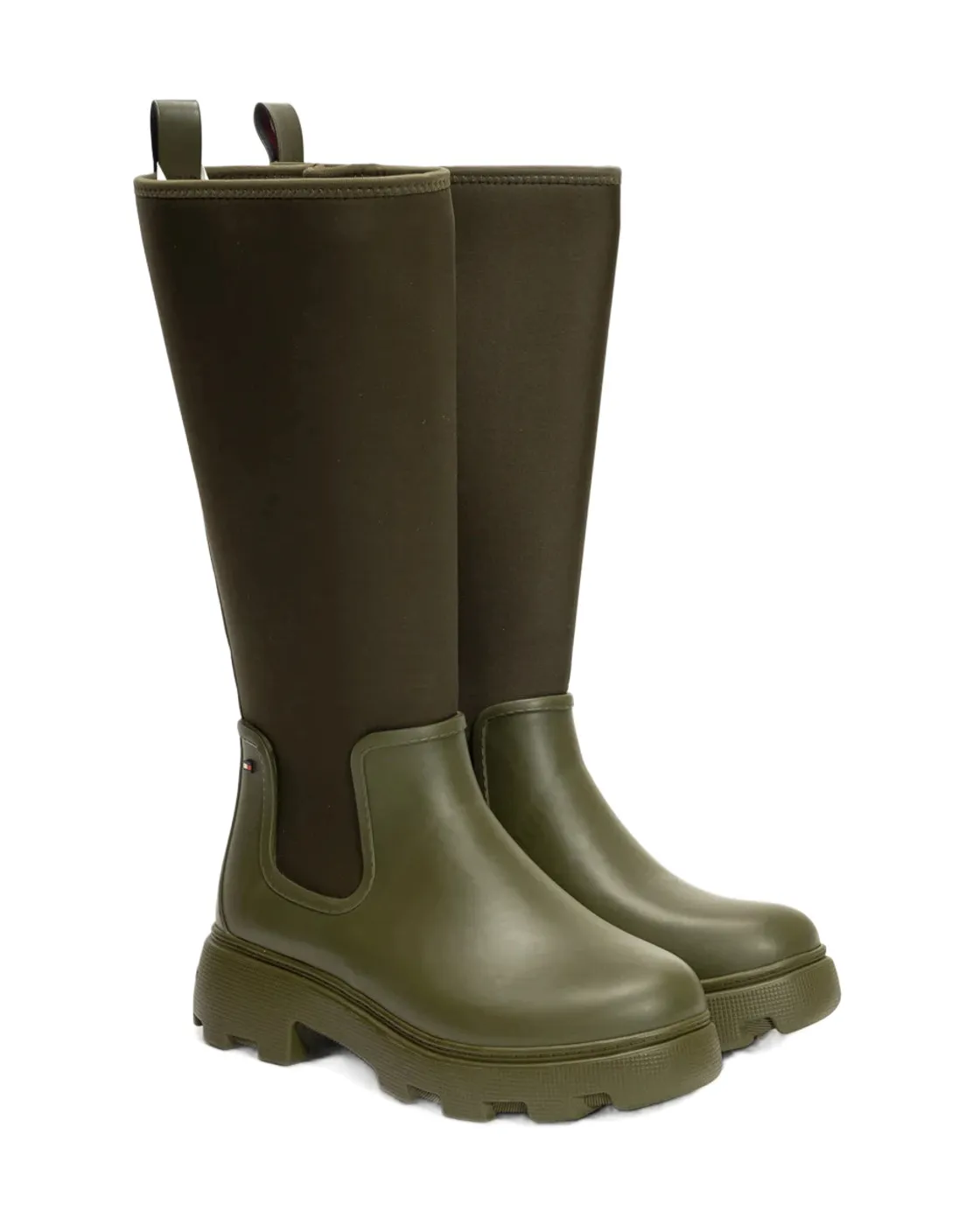
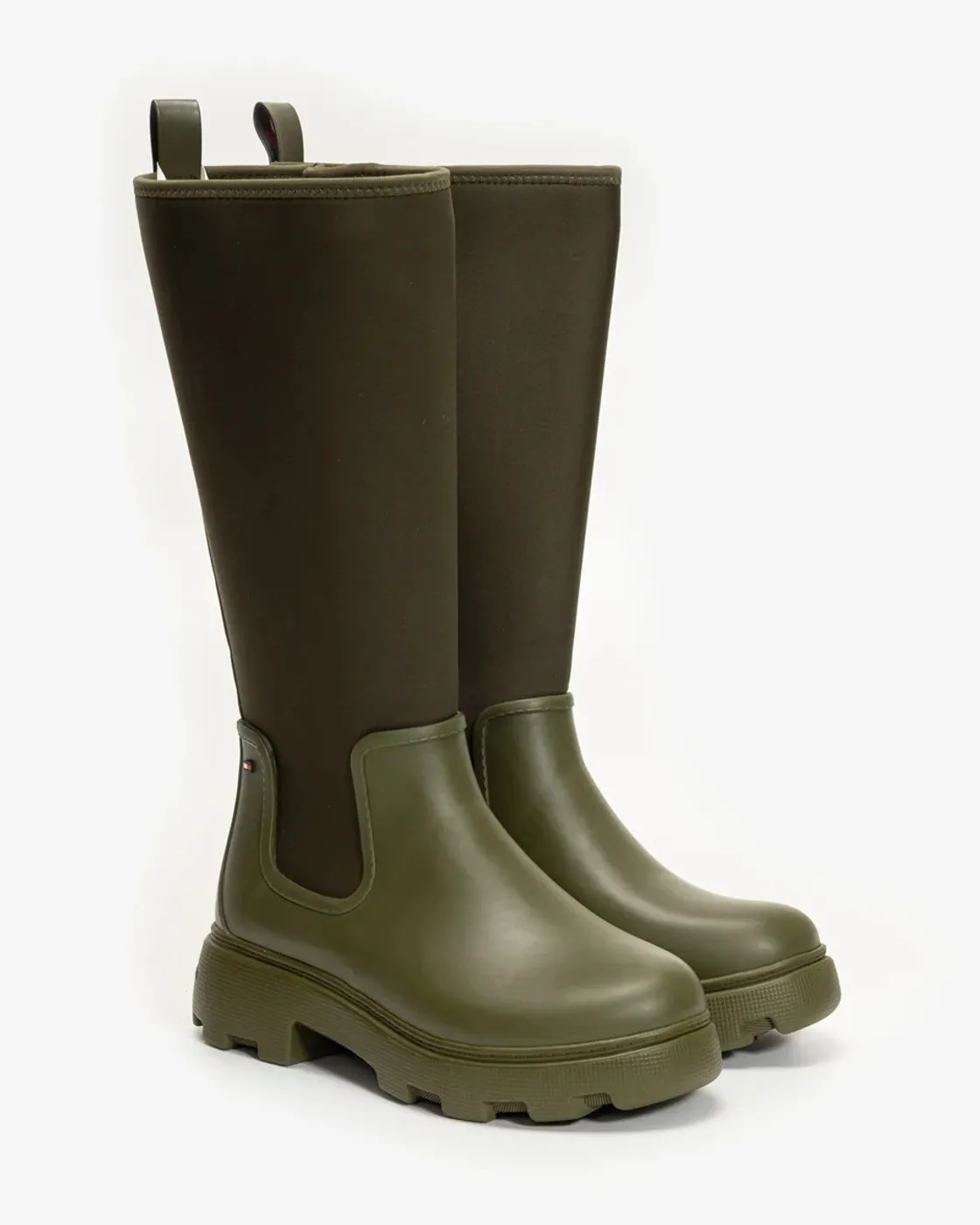
The cutout is clean; what’s gone is the shadow. The darkness where the sole touched the surface was deleted with the background, and the boot no longer rests on anything.
AI technologies were used.There are two fixes, and they are not the same thing. Carrying the original shadow: the shadow cast during the shoot is moved onto the new background as a layer that only darkens; it works well on a plain background, but on a patterned one the background texture can also be mistaken for shadow and leave a stain on the white. Adding a synthetic shadow: a shadow is drawn underneath afterwards. This is a presentation decision, not a correction: a drawn shadow comes not from real light but from a calculation.
Whichever you choose, the rule is consistency: make the shadow decision per catalog, not per product.
What does the marketplace ask for?
The white background is only one of the items marketplaces look at; a frame with its background removed can still fail in four places.
Background color. Amazon requires pure white (RGB 255, 255, 255) on the main image; off-white or cream isn’t enough. On Trendyol, white is a preference, not a requirement: a plain white or light-colored background is recommended. Flatten a transparent PNG before uploading.
Fill. Removal doesn’t change the framing: on a product shot from far away, the white space grows. Amazon wants the product to fill 85% of the frame; Trendyol expects it to fill most of the frame but gives no numeric threshold.
Resolution. Trendyol asks for at least 860×574 and at most 2000 pixels on each side. On Amazon the longest side must be at least 500 pixels, and at least 1000 pixels is needed for zoom.
Everything on the image. Text, logos, watermarks and prices are banned on the main image on both marketplaces.
All the rules are in our Trendyol and Amazon image requirements guides; you can measure a frame with the Marketplace Image Checker. Running this check across the whole catalog instead of a single frame is the job of marketplace management.
Where does our tool work, and where doesn’t it?
We have a free tool too: Product Background Remover. It runs in your browser and your photo doesn’t leave your device; the model downloads once (~90 MB), no account is needed. It offers five backgrounds, two shadow options and a brush that corrects the cutout by hand. It doesn’t enlarge the frame; it brings the long side down to 2560 pixels, and if you’re uploading to Trendyol, turn on the Trendyol sizing option. The tool doesn’t produce pixels, it only decides which pixels are the product: that’s the difference between measured pixels and generated pixels.
Where it falls short is also clear. Correcting every frame of a fur-collared coat collection with a brush means solving, in every frame, a problem that could be solved once at the shoot. Removing the background from hundreds of products makes the backgrounds uniform; it doesn’t make the light uniform. Removal doesn’t correct color either: a product shot under a yellow bulb is yellow on a white background too — exposure and color correction is the subject of our raw catalog image article. Food is entirely outside this route: a plate with its steam and sauce is shot where it is served and isn’t moved to a white background afterwards — we covered on-location food shooting at a restaurant separately.
This is where the work moves from software to the studio. The advice that pays off from the start is to set up the shoot for removal: put the product on a plain, light background that contrasts with its color, and light it softly from the side — we cover phone shooting in practice separately. In a properly set up product shoot the background isn’t removed afterwards, it’s built from the start: light is constant across the collection, color is controlled at the shoot, and the output is in marketplace format. Years of studio practice bring us back to where this article began: removal is a starting point.
Frequently Asked Questions
Is removing the background enough if there are several products in one frame?
No. The number of products on the main image is a separate rule. Amazon wants the product shown once, as a single unit, with only included accessories beside it; Trendyol requires that only the variant being sold be shown. The cutout can also fill in the gap between products. Crop down to a single product before removing the background.
Is a phone-shot frame high-resolution enough for a white background?
Usually more than enough; the risk runs the other way. A current phone frame exceeds the 2000-pixel upper limit Trendyol sets on both sides and is rejected if uploaded as is. What determines a clean cutout isn’t the camera’s resolution but the tone difference between the product and the background.
What changes when processing many images in bulk?
The work shifts from removal to checking. Our tool processes frames one at a time; the model downloads once, so frames after the first are fast. The time goes into checking each edge by eye and keeping the shadow decision consistent across the catalog. Across dozens of products, that checking costs more than solving the problem once at the shoot.
Does adding a shadow under the product on the main image cause a problem on a marketplace?
No published image rule bans shadows; what the main image must not carry is anything that isn’t part of the product: text, logos, watermarks, prices. The catch is the background: Amazon asks for pure white, so a widely spread shadow can stop the background from being white. Keep the shadow tight and measure before uploading.
Sources (12)
- remove.bg — Is remove.bg free? (0.25 megapixels, personal use) — remove.bg
- remove.bg — What is the maximum image resolution / file size? (preview, 625×400) — remove.bg
- remove.bg — remove.bg is moving to Canva (standalone site: December 1, 2026) — remove.bg
- Canva Help Center — Remove photo and video backgrounds (paid plans only) — canva.com
- Photoroom Help Center — What are Photoroom’s plans? (no commercial use) — help.photoroom.com
- Photoroom Help Center — Export limit (free: 25 per week, 100 per month) — help.photoroom.com
- Photoroom Help Center — Export limit on the free version (older article: 50 per month) — help.photoroom.com
- Photoroom Help Center — Daily usage limits — help.photoroom.com
- Photoroom Help Center — Image resolution limits for exports (mobile 750×550, web 2000×2000) — help.photoroom.com
- Photoroom — Pricing — photoroom.com
- Trendyol Akademi — Product Image Selection and Upload (in Turkish) — akademi.trendyol.com
- Amazon Seller Central — Product image guide (pure white, 85% fill, size, single product) — sellercentral.amazon.com